 FileSift
Clean up a messy folder in minutes.
Some files a rule can sort. The rest need your eyes. FileSift shows you each one big — press a number key and it's filed, that instant. You always see where each file went — and ⌘Z really brings it back.
Requires macOS 14 or later · Free to try · $7.99 one-time unlock
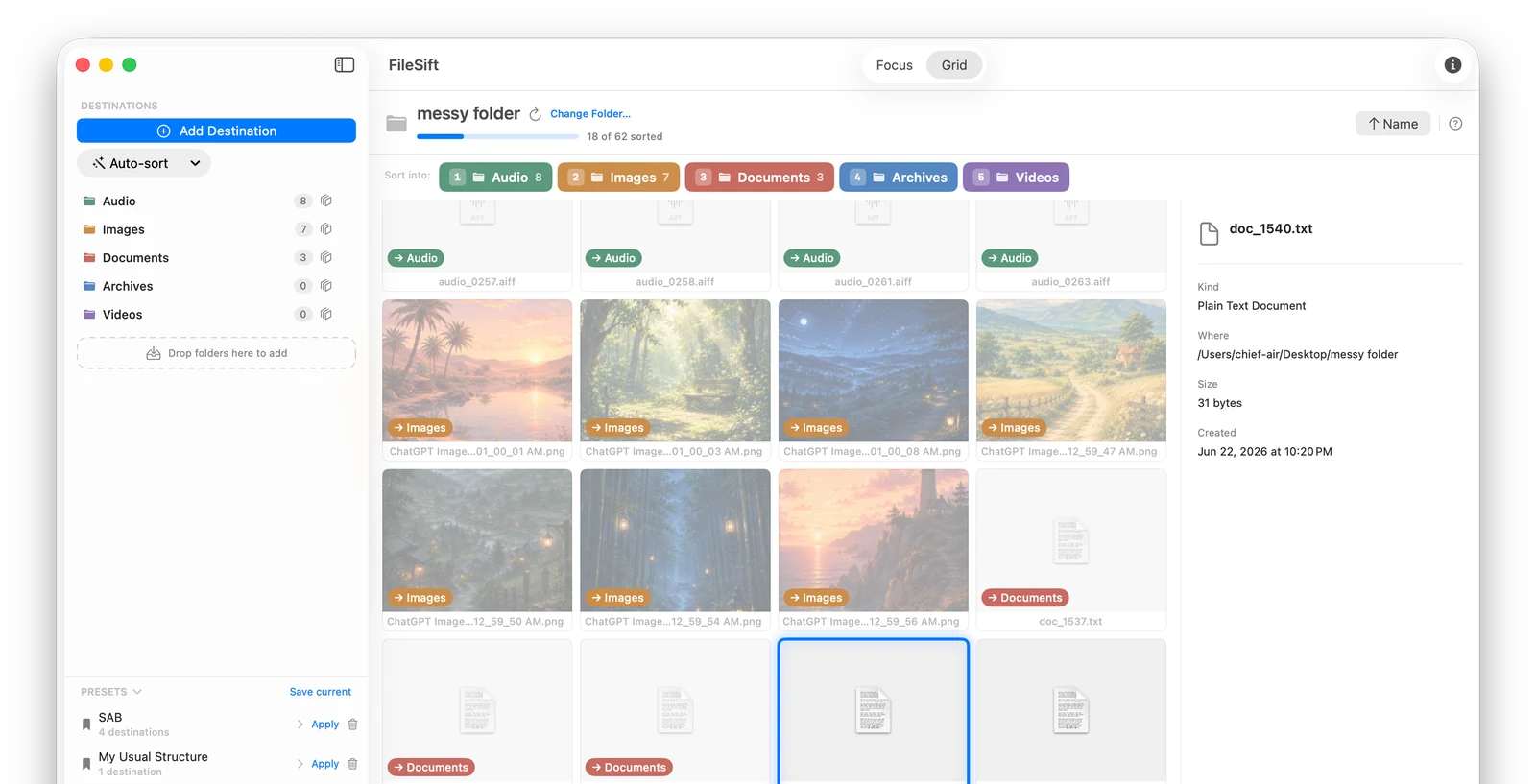
Move it, or tag it.
Organize files however suits the job — relocate them into folders, or label them where they sit.
Move into folders
Send each file to the right place — Keep, Delete, a project folder, wherever. The fastest way to turn a camera dump or Downloads pile into a tidy folder structure.
Tag in place
Don't want to move anything? Apply a macOS Finder tag instead. Categorize and color-code your files where they already live, so they stay findable without rearranging a thing.
How it works
Open a folder
Point FileSift at the folder you want to clean up.
Sort it, fast
Auto-sort by type, date, size, and more — or do it by hand in Grid (many at once) or Focus (one up close). Each press files it on the spot and jumps to the next.
Change your mind, safely
Sorted files stay on screen, showing where each one went. ⌘Z moves one right back; "Put Back All Moves" reverses the whole session.
Decide with your eyes, file with one key
Focus shows each photo, video, or document big enough to actually judge — the calls no rule can make. Press 1–9 and it's in that folder; FileSift brings up the next one before your hand moves.
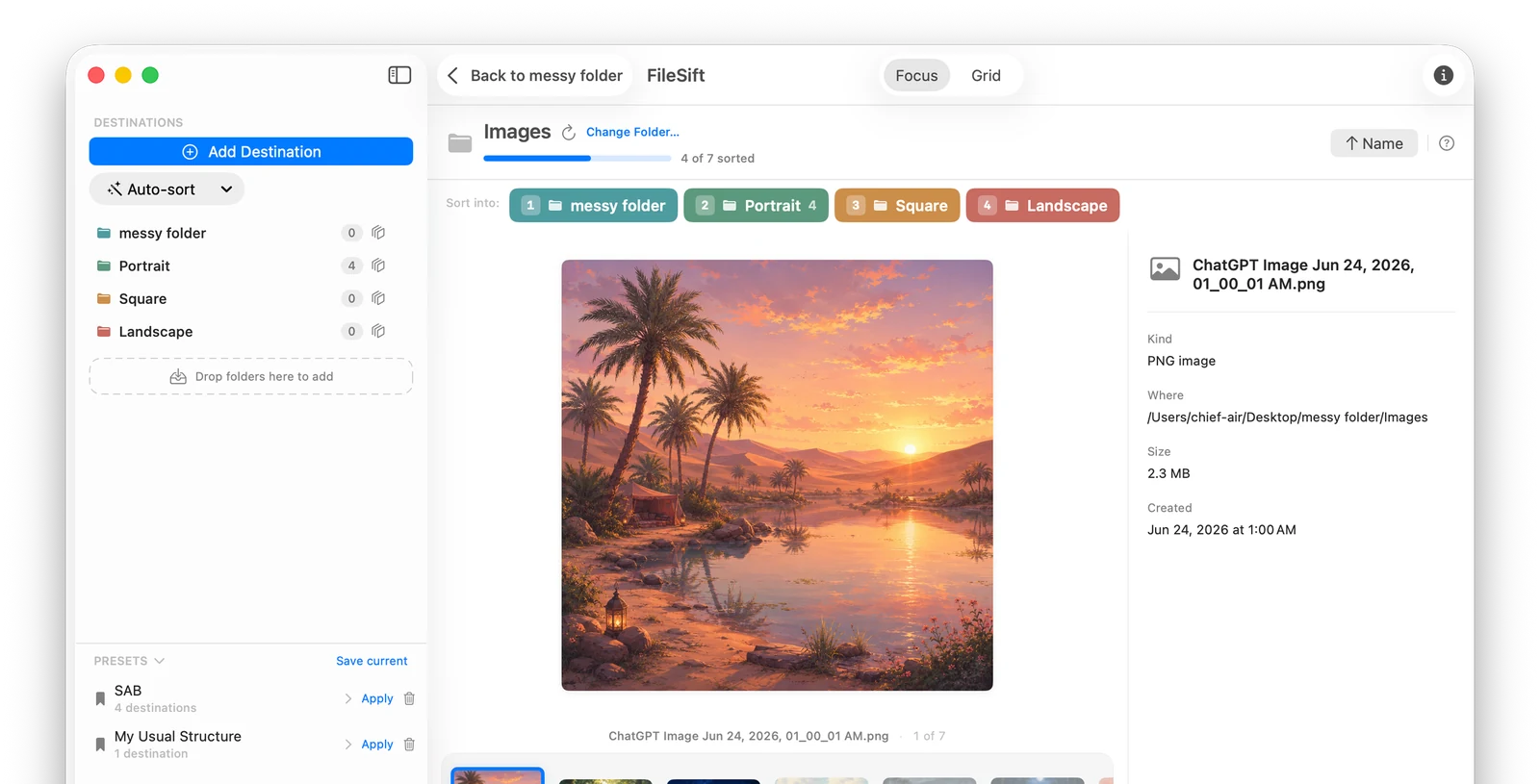
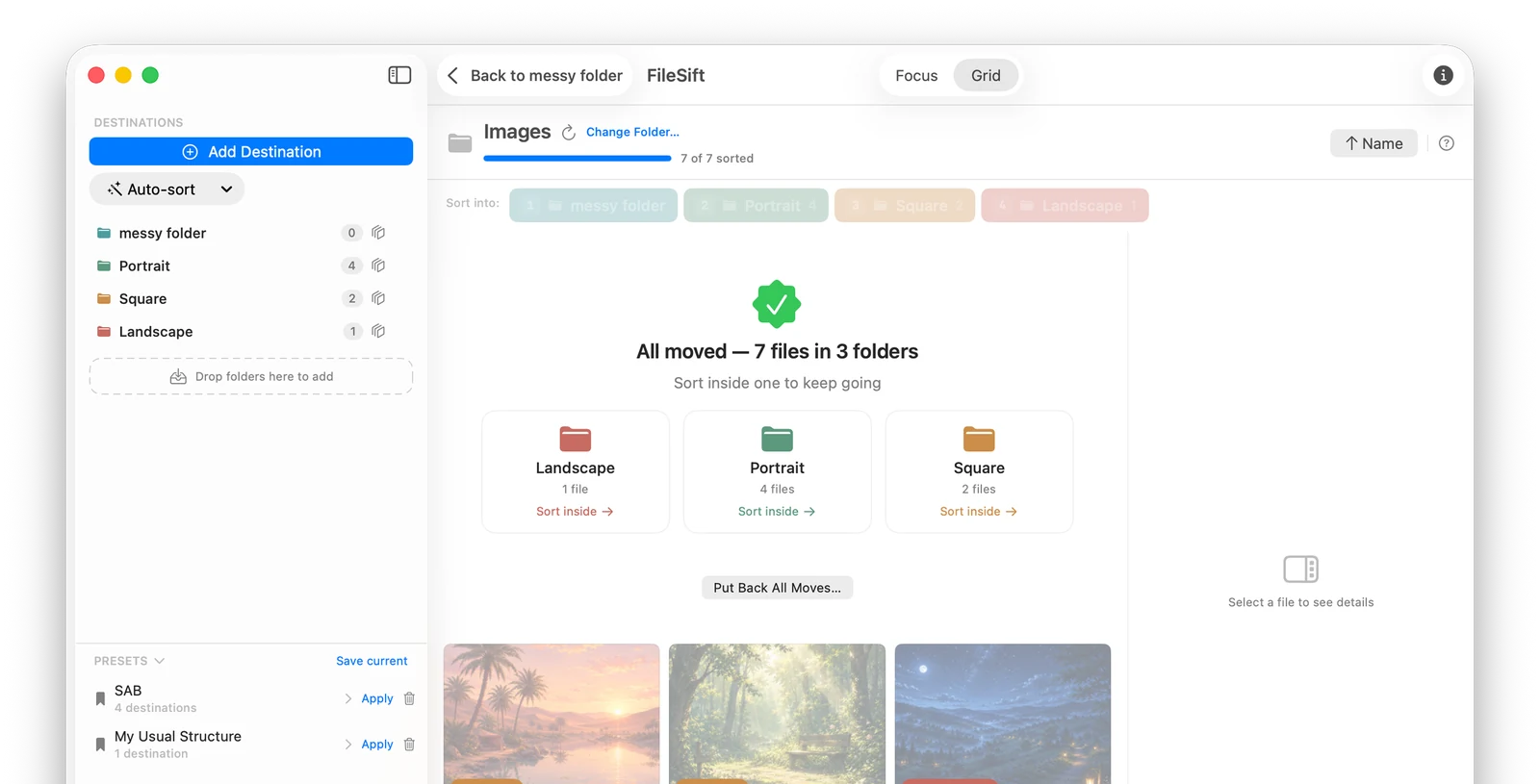
Always know where your files went
Every file you sort stays on screen, dimmed, with a badge showing exactly where it went. Sorting by hand and misfiled one? ⌘Z physically walks it back where it came from, one at a time, as far as you need.
Auto-sorted a whole folder and want it undone? Put Back All Moves reverses the entire batch in a single step — every file home, exactly where it started.
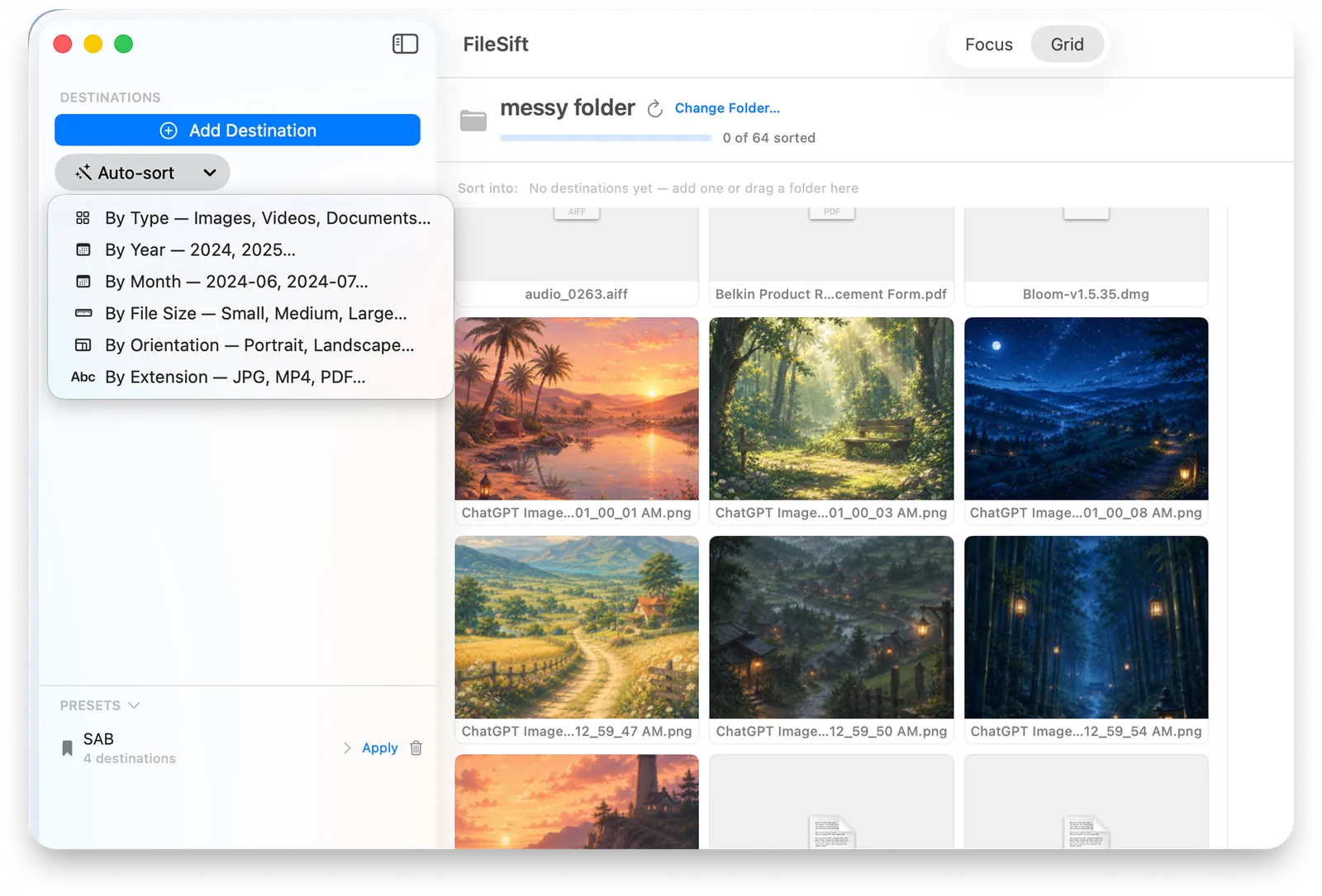
Let auto-sort take the first pass
Group a whole folder by type, date, size, orientation, or extension in one move — preview the plan, confirm, done. The machine handles the obvious 80%; you spend your attention on the files that need it.
Four hundred files? Deal in handfuls.
Grid shows the whole pile at once, every file as a thumbnail. Drag a box around a batch, shift-click a range, or sweep with the arrow keys — then one keystroke files the lot. All the selection moves your Mac hands already know.
Everything happens on your Mac
No account, no uploads, no tracking. FileSift sorts your files locally — they never leave your device. Read the privacy policy
Questions
Does it move or copy my files?
It moves them into the folders you choose. If you'd rather not move anything, use tags instead — your files stay exactly where they are and just get a macOS Finder tag.
What kinds of files can it sort?
Everything in the folder — photos and video with rich previews, plus PDFs, audio, text, documents, and any other file on your Mac.
What if I change my mind?
Undo really undoes: ⌘Z physically moves the last file back — press it as many times as you need — and "Put Back All Moves" reverses an entire session. Sorted files stay on screen, so you can always see where everything went (and send one somewhere else with a keypress).
Do I have to set up my folders every time?
No — save any destination set as a preset and apply it to the next folder in one click, so a routine cleanup (Downloads, camera dumps) starts ready to go. FileSift also remembers each folder's destinations automatically.
What do I need to run it?
A Mac running macOS 14 (Sonoma) or later.
Found a bug, or want to get in touch?
Use Report a Bug in the app (in the sidebar and the Help menu), or email filesiftapp@fastmail.com. A report includes only non-identifying diagnostics — app version, basic state, and the app's recent log — never your file names or a screenshot, and nothing is sent until you review and approve it.
Stop dragging files around.
Sort the folder that's been bugging you — into folders, or with tags.

macOS 14 or later · Free to try · $7.99 one-time unlock · No subscription