 FileSift
Sort files with your keyboard.
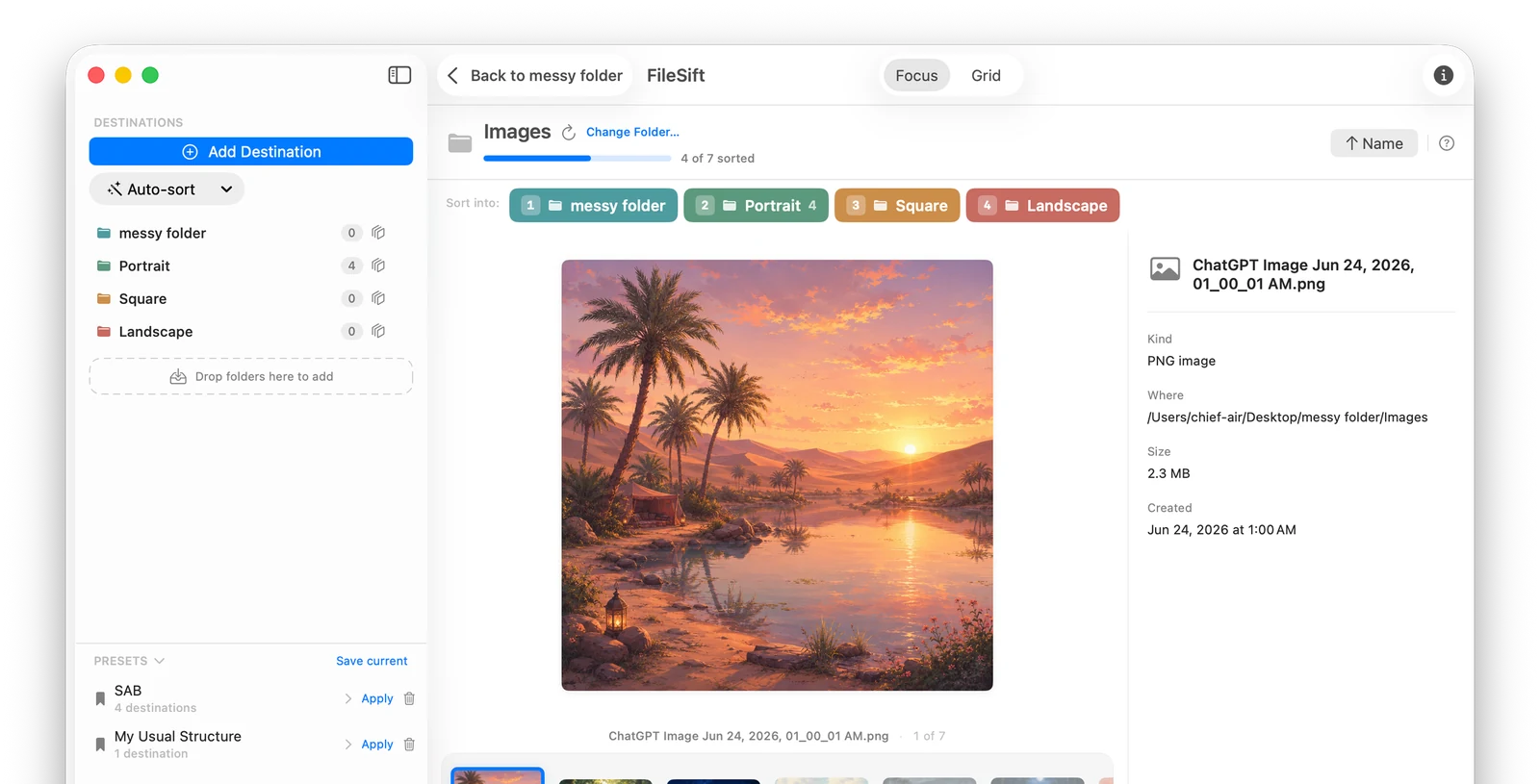
Press a number, the file moves to that folder, the next one's already up. FileSift turns clearing a folder into one keypress per file — no dragging, no window juggling, and ⌘Z really brings files back.
Requires macOS 14 or later · Free to try · $7.99 one-time unlock
What Finder's keyboard can do — and where it stops
Finder has more keyboard power than most people use. If you just need to move a handful of files, these get you there:
Built into Finder
⌘⌫ moves the selection to the Trash. ⌘C then ⌥⌘V cuts and pastes a file into the frontmost window. ⇧⌘N makes a new folder. Arrow keys plus ⌘O and Space (Quick Look) let you inspect before you act.
Where it stops
There's no "send this file to that folder" key. Every move means navigating to the destination — a new window or tab, a drag, or a paste — once per file. Fine for five files. Painful for a Downloads folder with three hundred.
One key per file
Set up destinations once
Add the folders you're sorting into — Keep, Archive, a project folder. Each gets a number key. Save the set as a preset for next time.
Press the number
Each file shows big. Press its number and it physically moves to that folder — the next file is already on screen. Space previews, S skips.
⌘Z means it
Undo physically moves the last file back, as many times as you need. "Put Back All Moves" reverses the whole session.
See what you're sorting
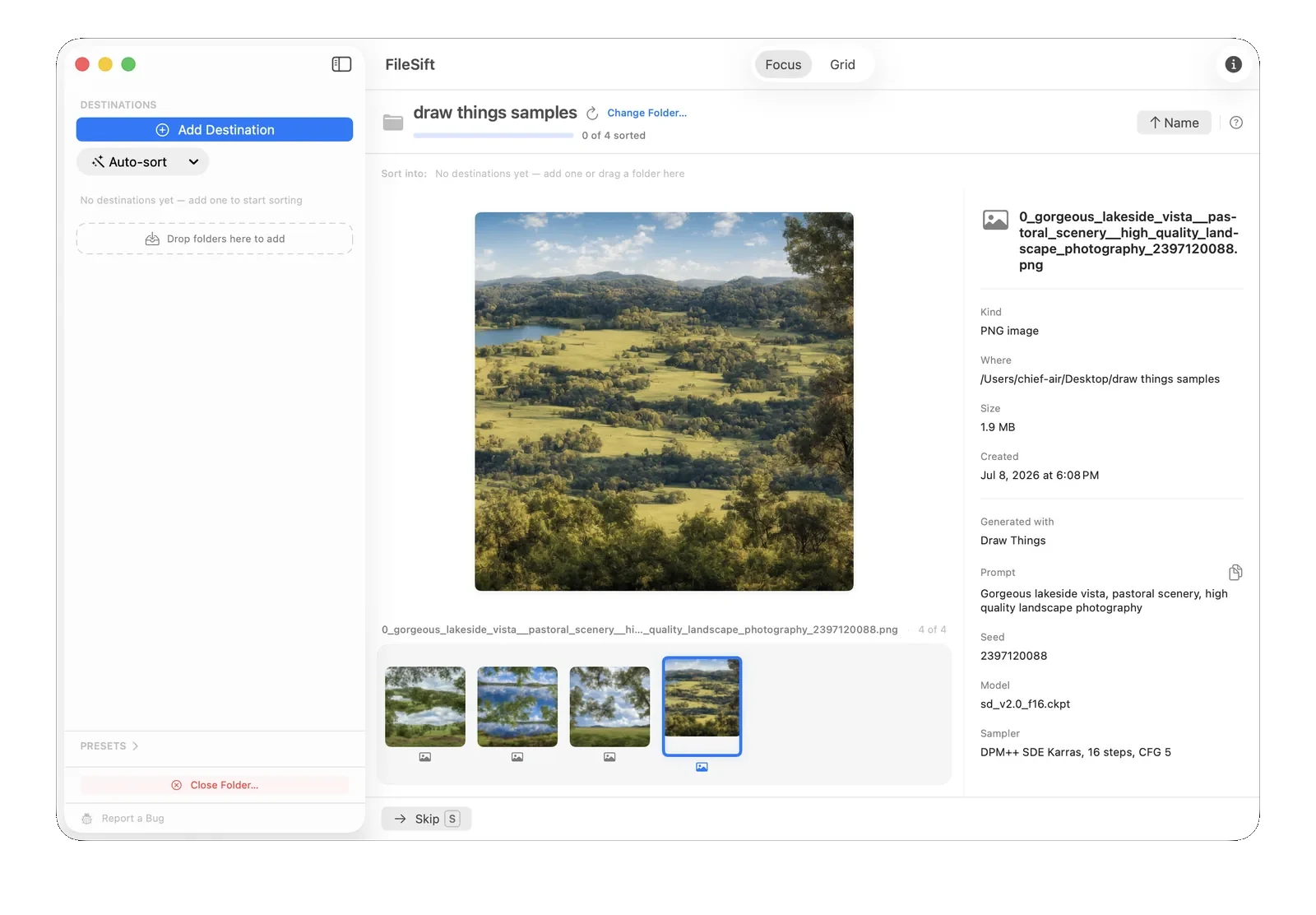
Every file shows in a large preview as you go — photos, video, PDFs, audio, text. You're deciding with your eyes on the file, not on a filename.
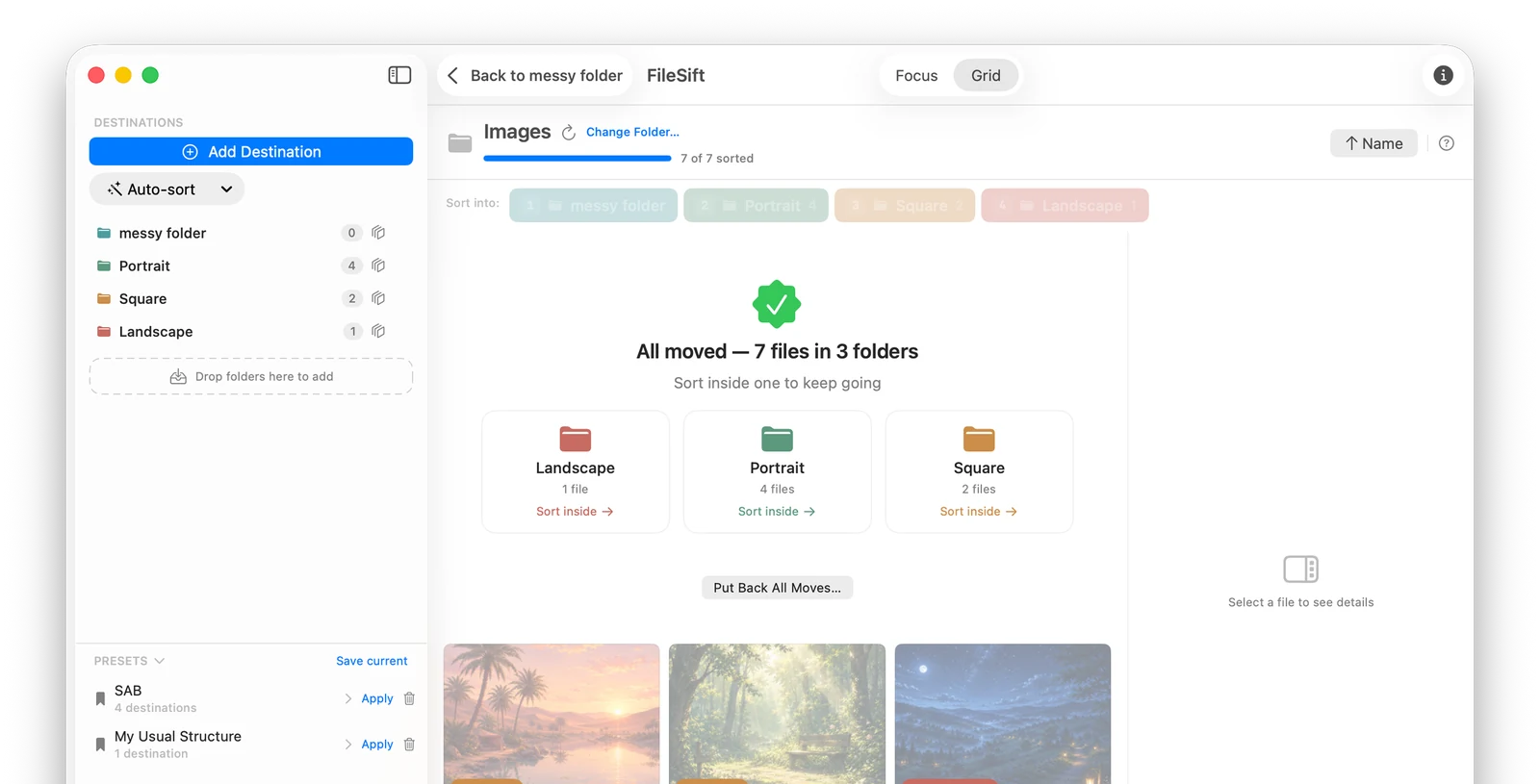
Sorted files stay visible
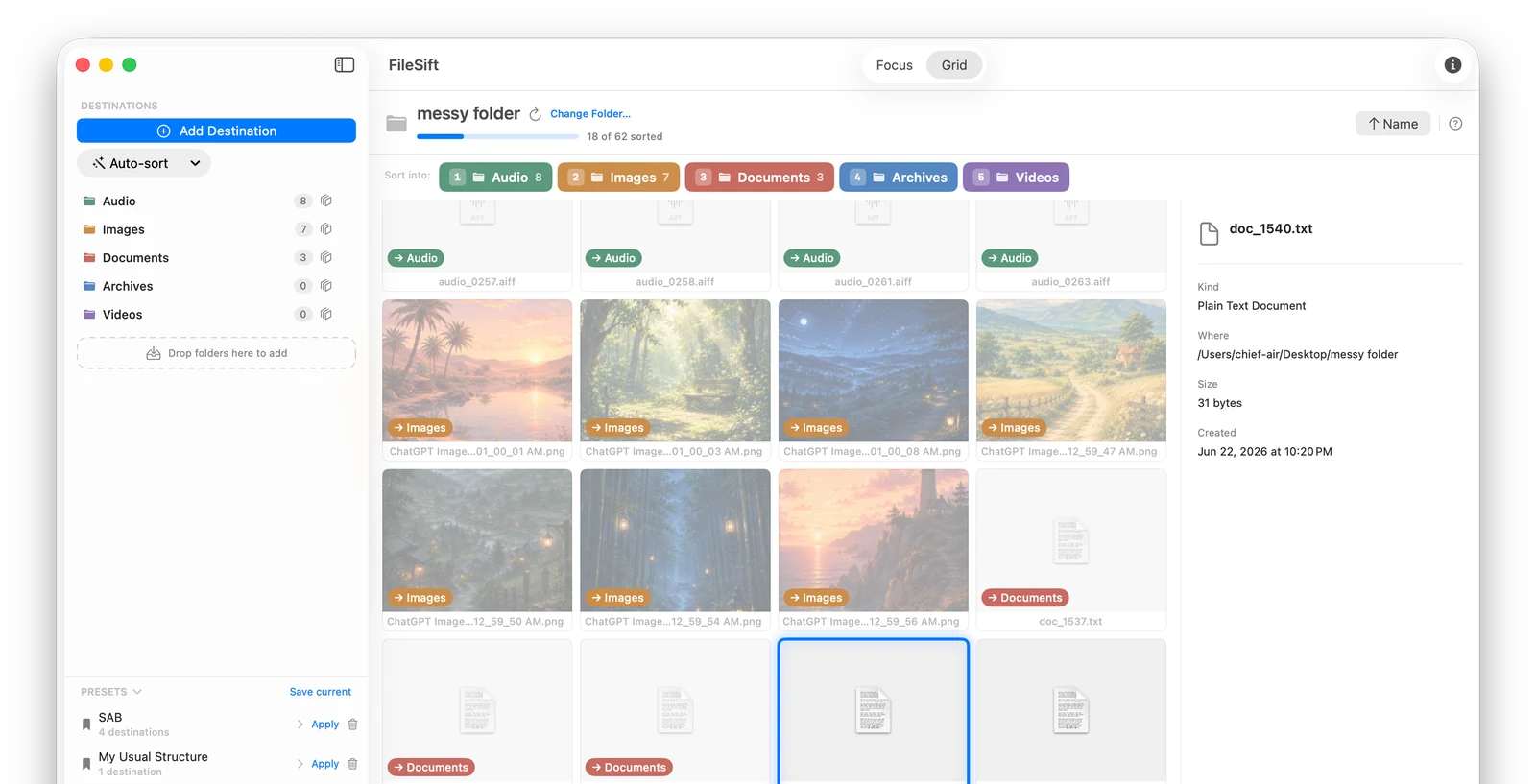
Files you've sorted stay on screen, dimmed, with a marker showing where each went — so you always know what happened, and any of them is one right-click from coming back.
Or tag instead of moving
A destination can apply a macOS Finder tag instead of (or as well as) moving — same keypress, but the file stays put and just gets categorized in place.
Questions
Can I move files with keyboard shortcuts in Finder?
Partly. Finder can move a file to the Trash with ⌘⌫, and you can cut-and-paste a file with ⌘C then ⌥⌘V — but that still means navigating to the destination folder for every file. There's no built-in way to say "send this file to that folder" with one key, which is the gap FileSift fills.
How does keyboard sorting work in FileSift?
You set up destination folders once — each gets a number key. Then you go through the folder one file at a time: press the number, the file physically moves to that folder, and the next file is already on screen. Space previews, S skips, ⌘Z physically moves the last file back.
What if I press the wrong key?
⌘Z really undoes it: the file physically moves back where it was, as many steps back as you need. "Put Back All Moves" reverses an entire session at once.
Does it work for any file type?
Yes — photos and video get rich previews, and PDFs, audio, text, and any other file can be sorted the same way. If it's in the folder, a keypress can move it.
Your hands never leave the keyboard.
Point FileSift at the messiest folder you have and clear it tonight.

Requires macOS 14 or later · Free to try · $7.99 one-time unlock